
Calendar sync
Work, life, and your own plans. Together.
Bring calendars connected to iOS into Tether’s visual timeline. See appointments beside your tasks and copy tasks to a selected writable calendar.
Download on the App StoreCalendar sync requires Tether Plus or Pro and permission to access your calendars.
Compare Free, Plus, and Pro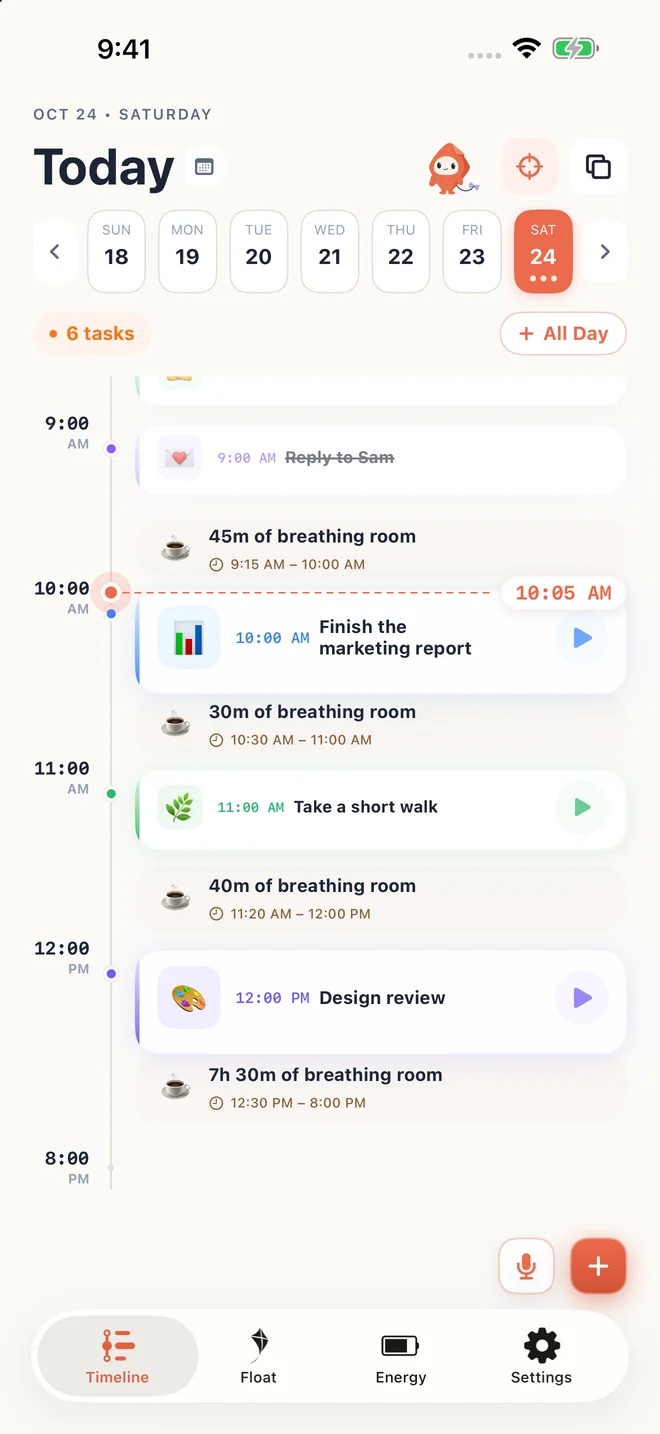
A small example
A work meeting in Google Calendar and a personal appointment in iCloud can appear beside the task you plan between them, when those calendars are connected to your device.
Use the calendars already on your device
Tether uses Apple’s EventKit calendar access. Calendars from iCloud, Google, or Outlook can be available when their accounts are connected to iOS and permission has been granted.
See commitments before adding another task
Choose the calendars you want in your timeline. Checking existing appointments alongside your task plan helps you avoid planning work over a meeting or forgetting to leave space to travel.
Keep calendar permissions in your control
You can copy Tether tasks to a selected writable calendar. Availability depends on the account’s permissions and sync settings. Tether does not connect directly to Google or Microsoft using a separate account login.
Try it in three small steps
- Connect the calendar account to iOS and confirm it appears in Apple Calendar.
- Allow calendar access when enabling sync in Tether.
- Select the calendars to display and, if desired, a writable calendar for copied tasks.
A few things you might be wondering
Can I use Google Calendar and Outlook with Tether?
Yes, when those calendars are connected to iOS and visible through Apple’s calendar system. Tether uses EventKit rather than a separate Google or Microsoft integration.
Why is one of my calendars missing?
Check that the account is syncing on the device, that its calendar is visible in Apple Calendar, and that Tether has calendar permission. Managed work accounts can restrict access.